First, send the prepared request in ChatGPT Work or Codex. If you want to complete the setup yourself, the connection steps using the single CasusLegal One address are provided below.
Open a new ChatGPT chat in “Work” mode or a Codex task. Copy the entire request. The agent will perform the available steps and show where your involvement is required.
Connect the CasusLegal One MCP server at https://mcp.casus.legal/one/mcp to my ChatGPT or Codex. Perform the steps available to you independently: add the MCP, configure sign-in via OAuth, and check whether the tools for searching judicial decisions are visible. If my sign-in, connector password, or confirmation is required, show me where to perform the action and continue afterward. Do not ask me to send a password or code in the chat.
A one-request connection may stop at the ChatGPT or CasusLegal sign-in step. Automatic completion specifically for CasusLegal One has not yet been confirmed.
Below are actual ChatGPT screens captured while creating the CasusLegal One connection on September 27, 2026. Open chatgpt.com/plugins in your browser and repeat the steps.
In your account enable a trial period or subscription for the required databases and set a connector password. The password is entered only on the CasusLegal sign-in page; do not send it in the chat.
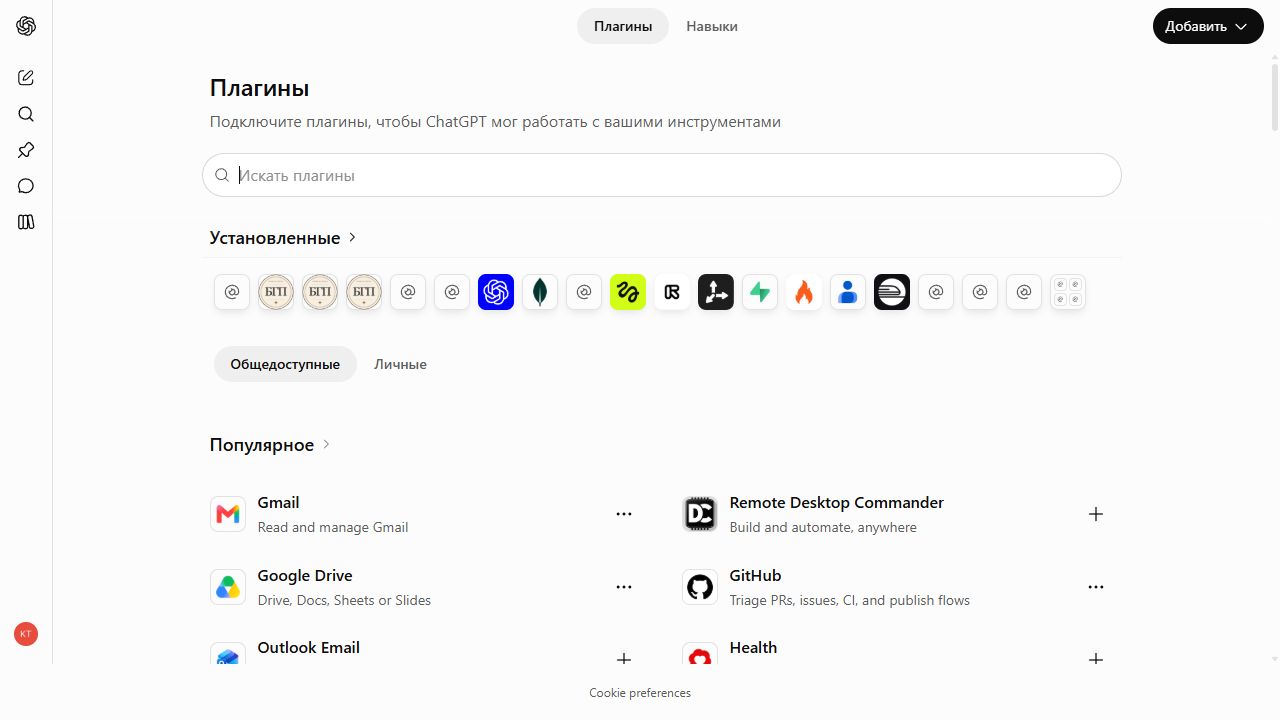
On the “Plugins” click the black button “Add” in the upper right.
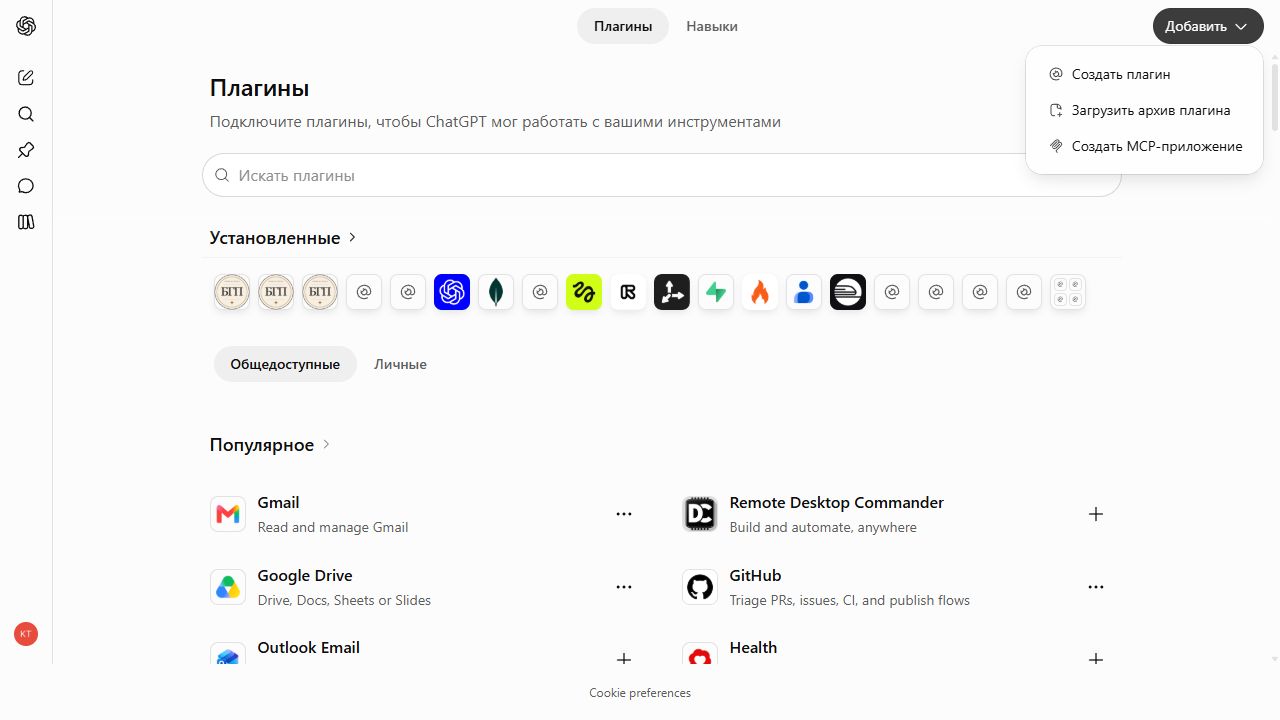
In the “Add” menu, click “Create MCP app”. The “Create plugin” option leads to a different form and is not needed for connection by URL.
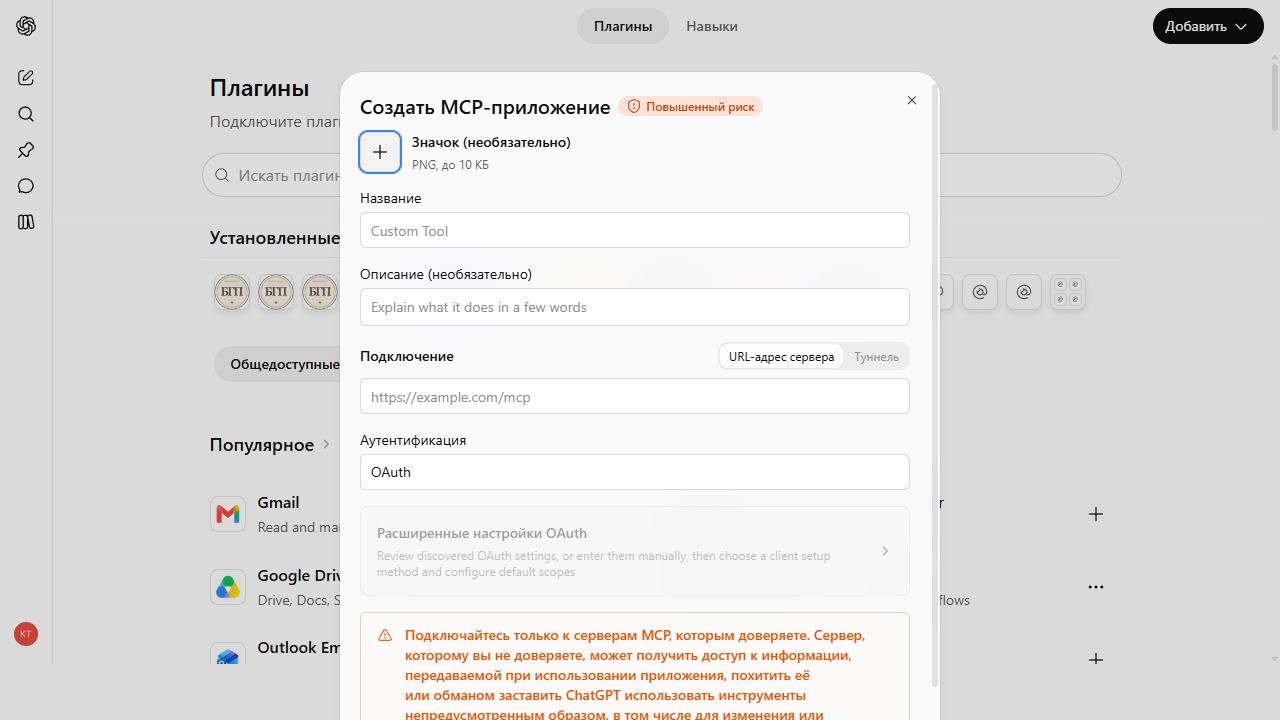
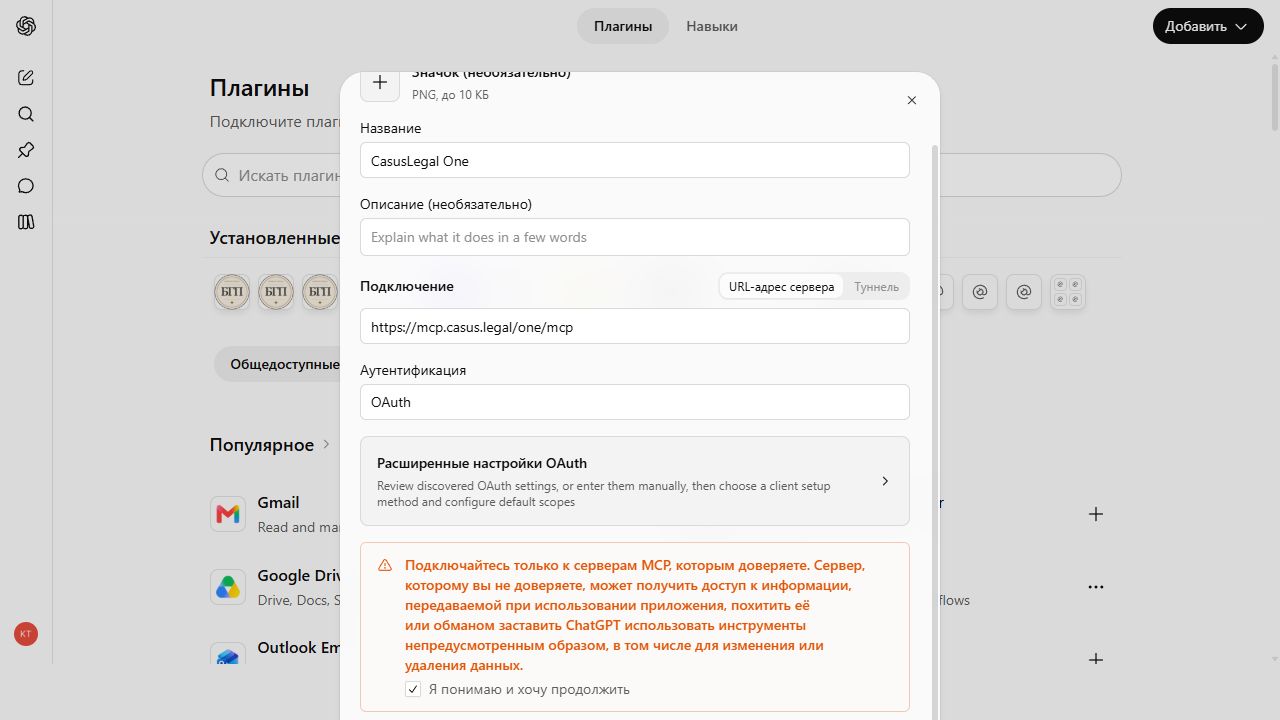
In the “Name” enter CasusLegal One, in the “Server URL” paste https://mcp.casus.legal/one/mcp . Select connection by URL. In the “Authentication” leave OAuth. The icon and description are optional; leave the advanced OAuth settings empty.
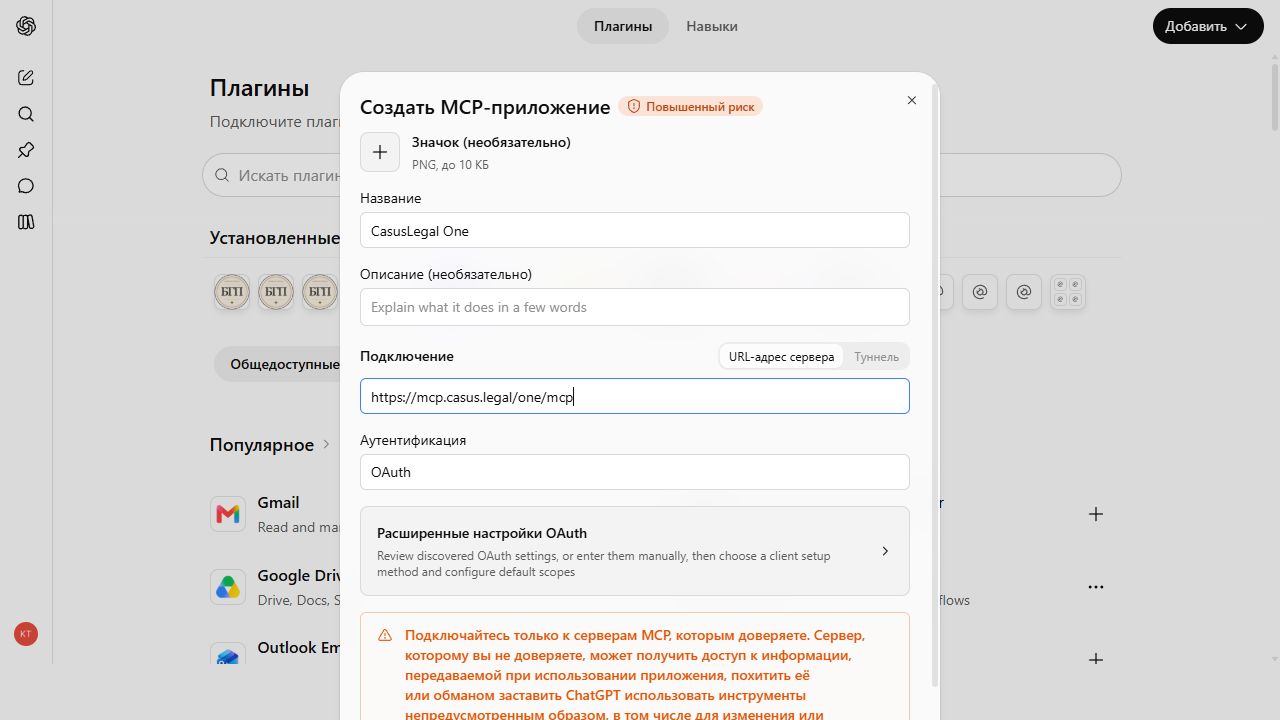
/one/mcp and OAuth.Read the warning about the third-party MCP server, tick “I understand and want to continue” and click “Create” at the bottom of the form.
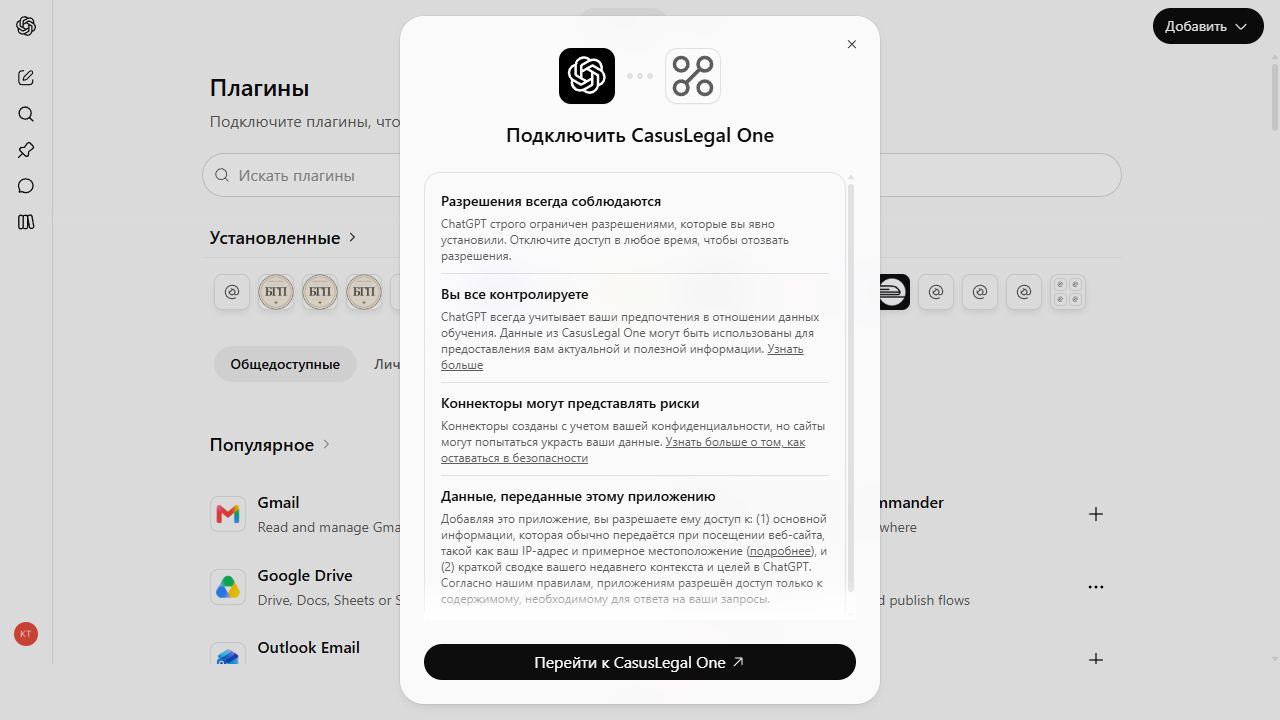
ChatGPT will display a separate window “Connect CasusLegal One”. Read the information about the data to be transferred and click “Go to CasusLegal One”. ChatGPT states that the application will receive ordinary website-visit data, including the IP address and approximate location, as well as a brief summary of the recent context and objectives of the chat.
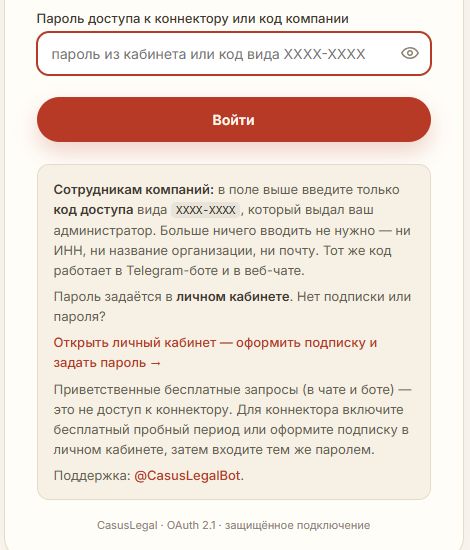
On the “Access to CasusLegal” enter the connector password from your account or the company code and click “Sign in”. This is a separate OAuth form displayed after the ChatGPT permissions window; signing in to your account alone does not complete it. Do not enter the password in the chat, URL, or advanced OAuth settings.
After signing in, ChatGPT will return you to the list of plugins. Open CasusLegal One: its card should contain a section “Connected accounts”. Click “Try in chat” and send a test request, for example: “Using CasusLegal One, find one published ruling of the Supreme Court of the Russian Federation on reducing a penalty under Article 333 of the Civil Code of the Russian Federation. Provide the case details and a link to the source.” Make sure that the response includes the case details and a link to the text of the decision.
Check the developer mode, plan, and workspace rules. The interface may differ between accounts.
The connector password is set in your account and is not the same as your Telegram password. Enter it only on the CasusLegal page.
Check that your subscription is active, select CasusLegal One for the current conversation, and repeat the request with links to the decisions.
If you also have a separate address connected /okrug/mcp, keep one suitable option so that the client does not display the same tools twice.