Four steps, about one minute. ZCode — Z.ai's agent environment for GLM models. It opens remote MCP servers login window, so connecting it here is just as simple as in Claude. You do not need to enter any keys or tokens: you sign in through Telegram or with the password from your account.
| What is required | Address (URL) |
|---|---|
| All paid databases, including the districts | https://mcp.casus.legal/one/mcp |
You work in ZCode on your computer. You fill in the form, the environment opens the CasusLegal login window, and you sign in through Telegram or with the password from your account.
The section Headers leave untouched.
ZCode is running on a server where a browser cannot be opened. In that case, add the header Authorization with a personal token vasrf_conn_… from the dashboard.
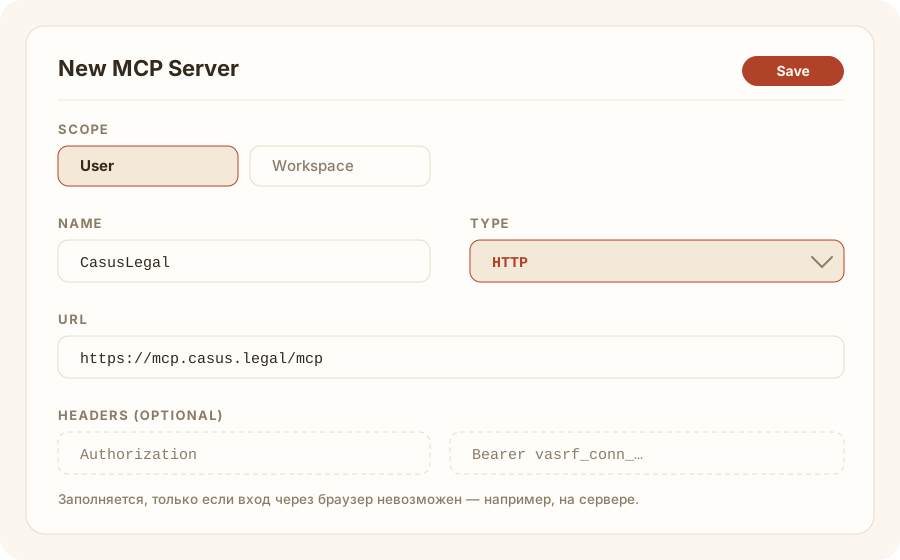
In ZCode go to Settings → MCP Servers and click New MCP Server in the top-right corner.
In the form, select Scope. The value User opens the connector in all workspaces, Workspace — only in the current project. For practical use, it is more convenient to User: connect it once and use it everywhere.
If the connector is already configured in your Claude Code or Codex CLI, click the icon on the same page Import. ZCode will read their configurations and offer to transfer the servers in one action, so steps 2 and 3 are unnecessary.
Type — HTTP (not stdio or SSE: our address uses the Streamable HTTP protocol). URL — https://mcp.casus.legal/one/mcp. Name — in Latin characters: CasusLegal.
The connection address is https://mcp.casus.legal/one/mcp. This is a single address: it provides access to all databases covered by your subscription, and it automatically selects the appropriate AI model based on the subject of the question. If you need a connector for a single database, separate addresses are also available (IP Court — https://sip.casus.legal/mcp, KAS — https://kas.casus.legal/mcp, KUD — https://kud.casus.legal/mcp), but the address must then match the database covered by your subscription; otherwise, the server will respond “the subscription is inactive or has expired.” There is no need to keep both the single address and separate addresses at the same time: the AI model will see two identical sets of tools and search twice. The complete table of addresses is below, under the steps.
Enter the name using Latin characters only. Internal tool identifiers are not generated from Cyrillic names, so the server will connect and appear in the settings, but in the chat the model will say that it cannot see any tools.
After saving ZCode it will open the CasusLegal login window. It offers two methods:
Via Telegram the fastest option: an account will be created automatically if you do not already have one. With a password those who have already set one in the account's “Security” section can sign in this way.

Option without a login window. If ZCode is running on a server, issue a token in account (“Connectors” tab, “Other environments” section, “Issue token” button) and add it to the form in the Headers: field Authorization, value Bearer vasrf_conn_…. The token is shown once and remains valid while the subscription is active.
Ask the agent a substantive question, for example: “Find Supreme Court of the Russian Federation case law on reducing a penalty under Article 333 of the Civil Code of the Russian Federation.” The first search takes about 30 seconds because the connector runs several sub-searches across the corpus. The response should include case details with links to the full texts.
If you need another database, repeat steps 1–3 using its address from the table below. Each database is connected as a separate server, while the subscription remains the same.
The form writes to the same files that can be edited manually; the server-addition window has a full-configuration mode into which the entire JSON can be pasted.
| Database | Name (Name) | Address (URL) |
|---|---|---|
| All subscribed databases at once | CasusLegal | https://mcp.casus.legal/one/mcp |
| Commercial cassation districts (all) | CasusLegal Okruga | https://mcp.casus.legal/okrug/mcp |
| Higher courts: Constitutional Court · Supreme Court · Supreme Commercial Court | CasusLegal | https://mcp.casus.legal/mcp |
| Intellectual Property Court (IP Court) | CasusLegal SIP | https://sip.casus.legal/mcp |
| Administrative cases (KAS · Judicial Chamber for Administrative Cases of the Supreme Court of the Russian Federation) | CasusLegal KAS | https://kas.casus.legal/mcp |
| Criminal cases (KUD · Judicial Chamber for Criminal Cases of the Supreme Court of the Russian Federation) | CasusLegal KUD | https://kud.casus.legal/mcp |
Check the server type: it must be HTTP. With the SSE type, a connection to our address cannot be established.
The second possible cause is a Cyrillic server name. Rewrite it in Latin characters and reconnect.
Open the “Connectors” tab in your account and check the subscription period for the required database. Each corpus is billed separately; “Higher Courts” is included in every plan.
If you entered a password and it did not work, set it again in the account's “Security” section. Those who signed in through Telegram may not have a password at all.
This is our server's response to a stale connection registration: ZCode it is asking to return the authorization code to an address that is not present in its own registration. The subscription and password have nothing to do with it — access verification was never reached.
Delete the server in Settings → MCP Servers and add it again (type HTTP, name in Latin characters), then sign in. If the error persists, connect using a personal token: account → “Connectors” → “Other environments” → “Issue token,” then the header Authorization = Bearer vasrf_conn_… — this path does not use OAuth at all.
Use the token option from step 3: header Authorization with the value Bearer vasrf_conn_…. The token is issued in the account and does not revoke connections already operating in other environments.
On the MCP Servers there is a button Import. ZCode automatically finds these clients' configurations and transfers the servers. After importing, check that the server type remains HTTP, and sign in on the first request.
Add one server for each address in the table above, using different names. There is one subscription, and it works simultaneously in all environments: ZCode, Claude, ChatGPT.